Device changes, reinstalling, and restoring purchases
After changing devices or deleting the app on iPhone / iPad, first confirm that you are signed in to the Apple ID used for the original purchase. Then go to App Store → Account → Purchased, find Shadowrocket, and download it again. Some system versions place this under Apps or My Apps; use the entry shown on your current store account page. If you cannot find the purchased app, check the account and region before making another purchase.
iPhone and iPad share one $2.99 App Store purchase when using the same Apple ID. Redownloading from Purchased with the original account does not require payment again. Mac, Windows, Android, and Linux versions are free; download the installer for the relevant platform again when changing devices. Another Mac may have a different processor, so check About This Mac before reinstalling rather than reusing a file simply because it worked on the old computer.
Restoring an app purchase and restoring connection details are separate tasks. The store download history restores the client; it does not automatically restore server passwords, subscription URLs, or local Config. Before changing devices, make sure you still have valid details from your service provider. If you need to back up configuration, keep files containing addresses, passwords, or subscription details secure and do not post them in public discussions.
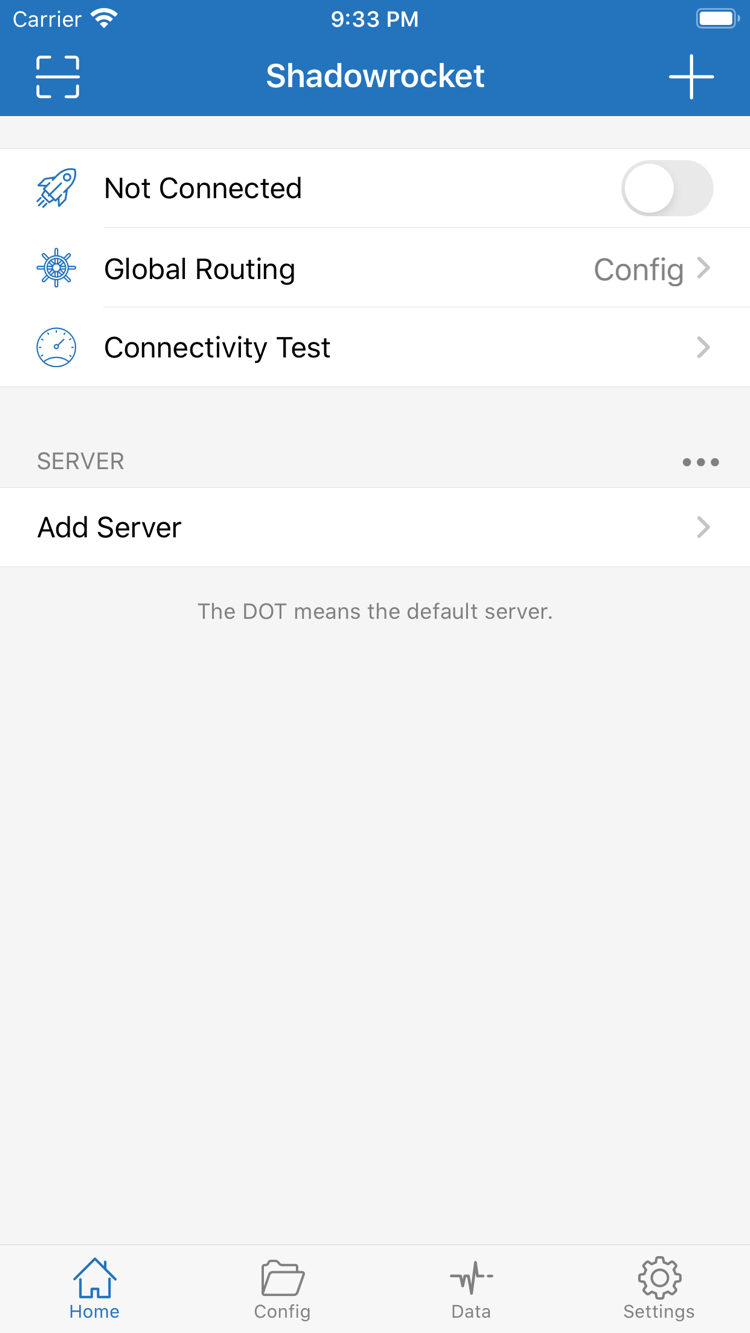
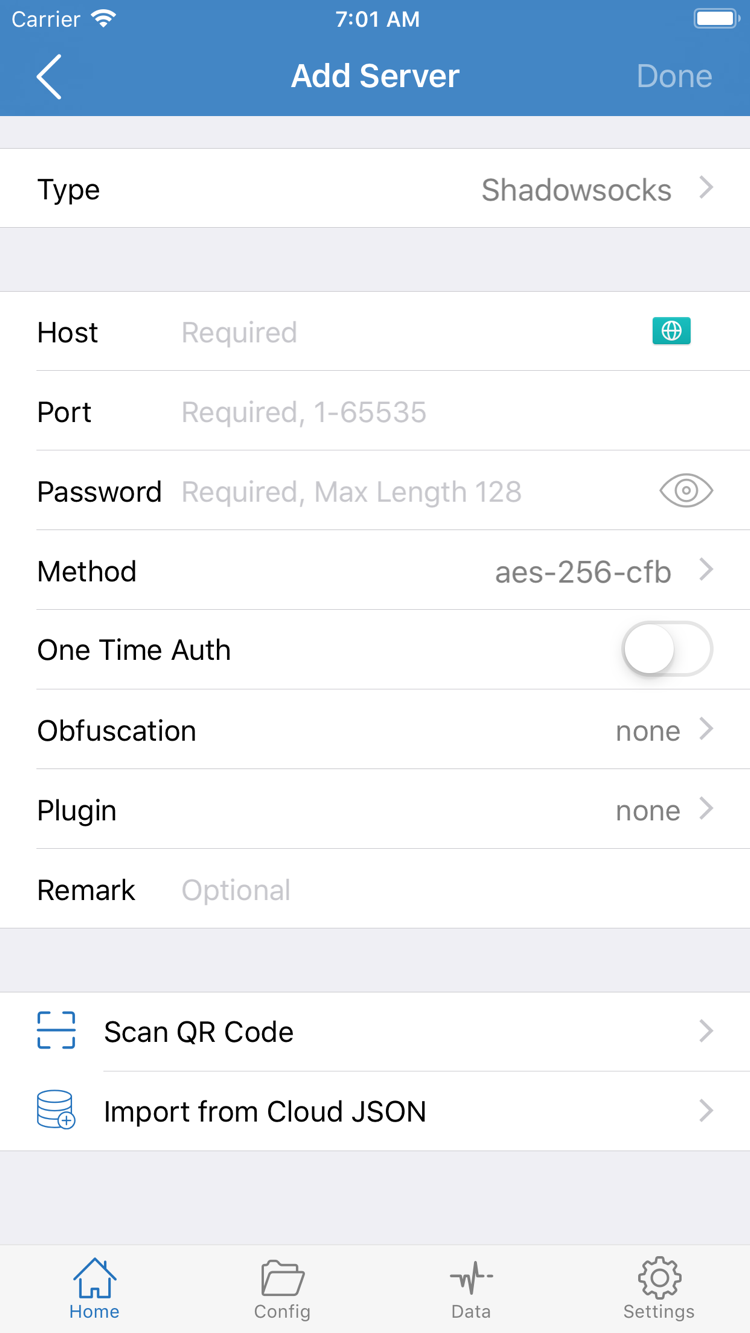
After installing on a new device, import your existing subscription or server details, check the server list and current Config, choose an appropriate Global Routing mode, and connect. Do not treat the app icon appearing as proof that setup is complete. For import, connection, and verification steps, continue to the setup guide. For configuration and routine maintenance, see the official manual.